
The Text tool places text on the canvas. Text is an object, not pixels: after you commit it, you can come back, change the words, the font, the color, or the alignment, and every one of those changes is its own undo step.
Placing and typing
Choose the Text tool (T), click where the text should go, and start typing. Text is drawn in the primary color. Enter inserts a new line; Esc or the confirm button in the tool options bar finishes.
Hovering over the text you are editing shows a hint popover with the gestures for that object: re-edit, open its properties, and move it.
While an object is selected or being edited, its dashed border and corner grips are drawn. Drag a corner grip to resize, or drag the dashed border to move the object. Alt+drag rotates it.
Point text and area text
The Mode dropdown decides how the text behaves:
| Mode | Behaviour |
|---|---|
| Point | The text grows to its natural width. It only wraps where you press Enter. Dragging a corner grip resizes it by changing the font size. |
| Area | The text flows to fit a box. Dragging a corner grip resizes the box and re-wraps the words inside it. |
You can work in either order: place a box and type into it afterwards, or type first and switch to Area to give it a box to wrap inside. An area object can be resized before you type anything - an empty box keeps its handles so you can set it up first. Dragging a grip on point text changes the font size, which is a different gesture from resizing an area box, and the tooltip on the grip says which one you are holding.
An empty box that has never had text typed into it is dropped rather than kept when you switch modes or pick another tool, so switching back and forth does not leave blank objects behind. Converting point text to Area keeps the text’s own natural width as the box width, clamped so the box stays on the canvas.
The font and size
The Font dropdown lists every font family Pango can describe, each name rendered in its own font as a live preview. Its popup has a search box: typing filters the list to families whose name contains what you typed, so mono finds DejaVu Sans Mono.
Font size is the numeric field next to it. [ and ] decrease and increase the size.
Style
| Control | Options |
|---|---|
| Bold | On or off, also Ctrl+B. |
| Italic | On or off, also Ctrl+I. |
| Underline | On or off, also Ctrl+U. |
| Weight | Thin 100, Ultralight 200, Light 300, Semilight 350, Book 380, Normal 400, Medium 500, Semibold 600, Bold 700, Ultrabold 800, Heavy 900, Ultraheavy 950 - whichever ones the chosen family actually provides. |
| Variant | Normal, Small Caps, All Small Caps, Petite Caps, All Petite Caps, Unicase, Title Caps. |
| Text Style | Left, Center, Right, or Justify. |
Weight and variant depend on the family: a family with only one face ignores them rather than failing, and the same is true of italic and bold.
Fill and outline
The Fill dropdown decides what the letters are made of:
| Option | Result |
|---|---|
| Fill | The text is filled with the primary color. |
| Outline | Only the outline of the letters is drawn, in the secondary color. |
| Normal and Outline | The text is filled with the primary color and outlined with the secondary color. |
| Fill Background | The text is filled with the primary color and its bounding box is filled with the secondary color, behind the text. |
With an outline, Outline width sets its thickness in pixels, and the join style decides its corners: Miter Join for sharp, pointed corners, Bevel Join for flattened, squared-off corners, and Round Join for rounded ones.
Re-editing text later
Text objects stay editable, so there are several ways back into one:
- Ctrl+click a text object to put the cursor back into it.
- Ctrl+Shift+click it to open its Text properties dialog, which gathers the font, size, style, alignment, and fill settings in one place.
- Click its row under the layer in the Layers pad to select it.
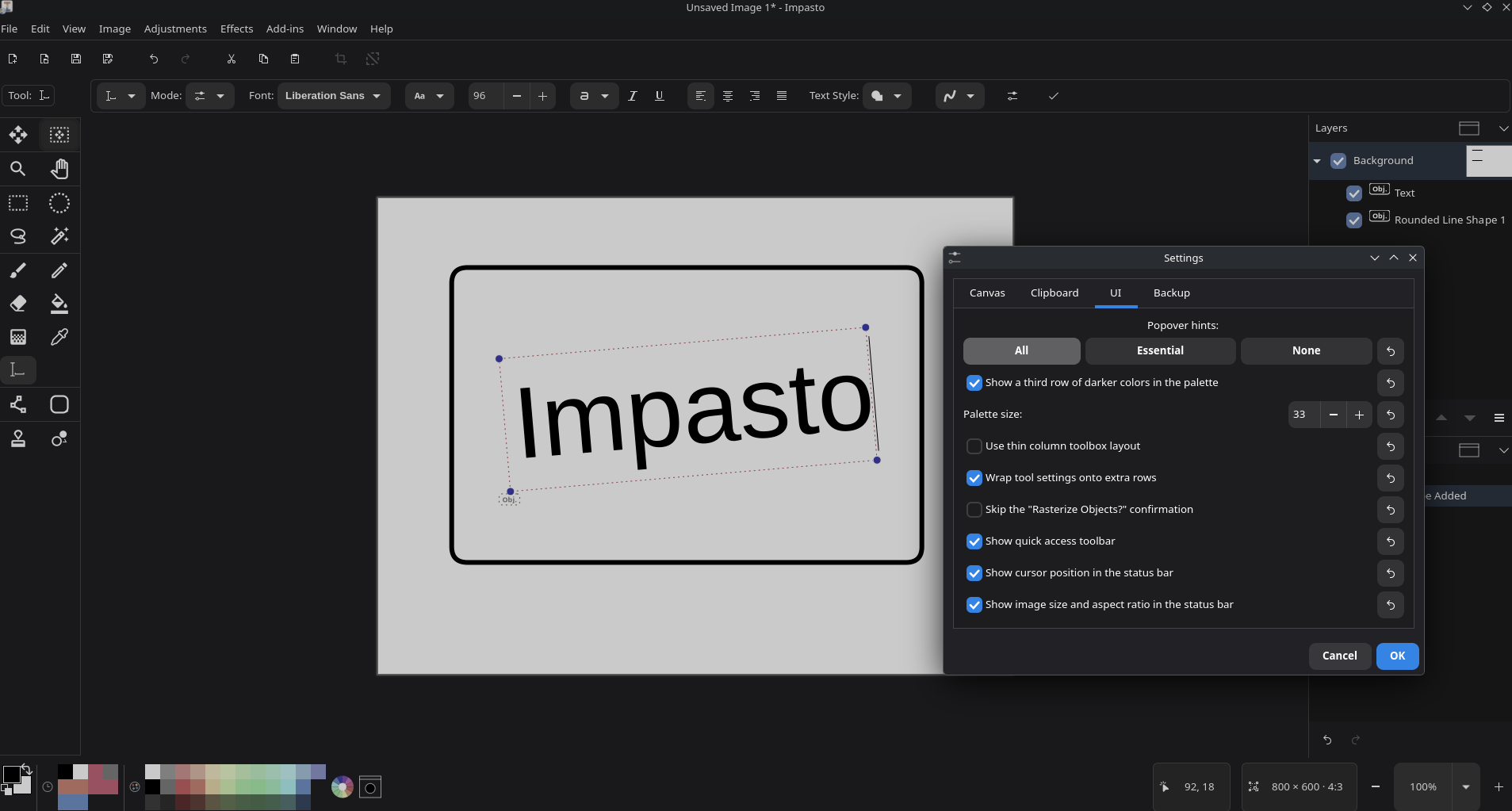
Selecting an existing object shows its settings in the tool options bar - its font, size, alignment, and fill - and does not overwrite them with whatever the toolbar happened to be set to. Clicking a text object’s row in the Layers pad likewise leaves its alignment and font alone, so selecting a centred text object does not quietly left-align it.
Text is committed as an object by default; the Mode dropdown’s other choice, Raster — fuses to layer, paints it into the layer’s pixels on commit instead. That version can be cut, moved, and erased immediately like any artwork, but it can never be edited as text again. Whatever the mode, a text object is baked into pixels by anything that needs flat pixels - cutting, erasing, cropping, resizing, rotating, flipping, flattening, or running an effect across it - and Impasto warns you first unless you have turned that warning off in Edit > Settings… > UI.
Text and the keyboard
While you are typing, the arrow keys, Home, End, Backspace, Delete, Ctrl+A, and Ctrl+Z act on the text rather than on the image, and the tool keys do not switch tools. For copy and paste inside the text itself, the defaults are Ctrl+Insert and Shift+Insert, because Ctrl+C and Ctrl+V are kept for the image. The full list is under Keyboard shortcuts, and all of these keys can be rebound.
Esc stops editing and commits the object. Since it also clears a canvas selection, pressing it once while typing finishes the text and a second press deselects.